AMEBO user manual
Incident reporting and case management
Screenshots use invented example data. Contents shown for your role.
- Getting started — What AMEBO is, who uses it, signing in and finding your way around.
- Reporting an incident — Step-by-step guide to the report form, with or without an account.
- Email notifications — Which emails AMEBO sends, to whom, and what they contain.
- Privacy, security and FAQ — How your information is protected, and answers to common questions.
Chapter 1
Getting started
What AMEBO is, who uses it, signing in and finding your way around.
What AMEBO is for
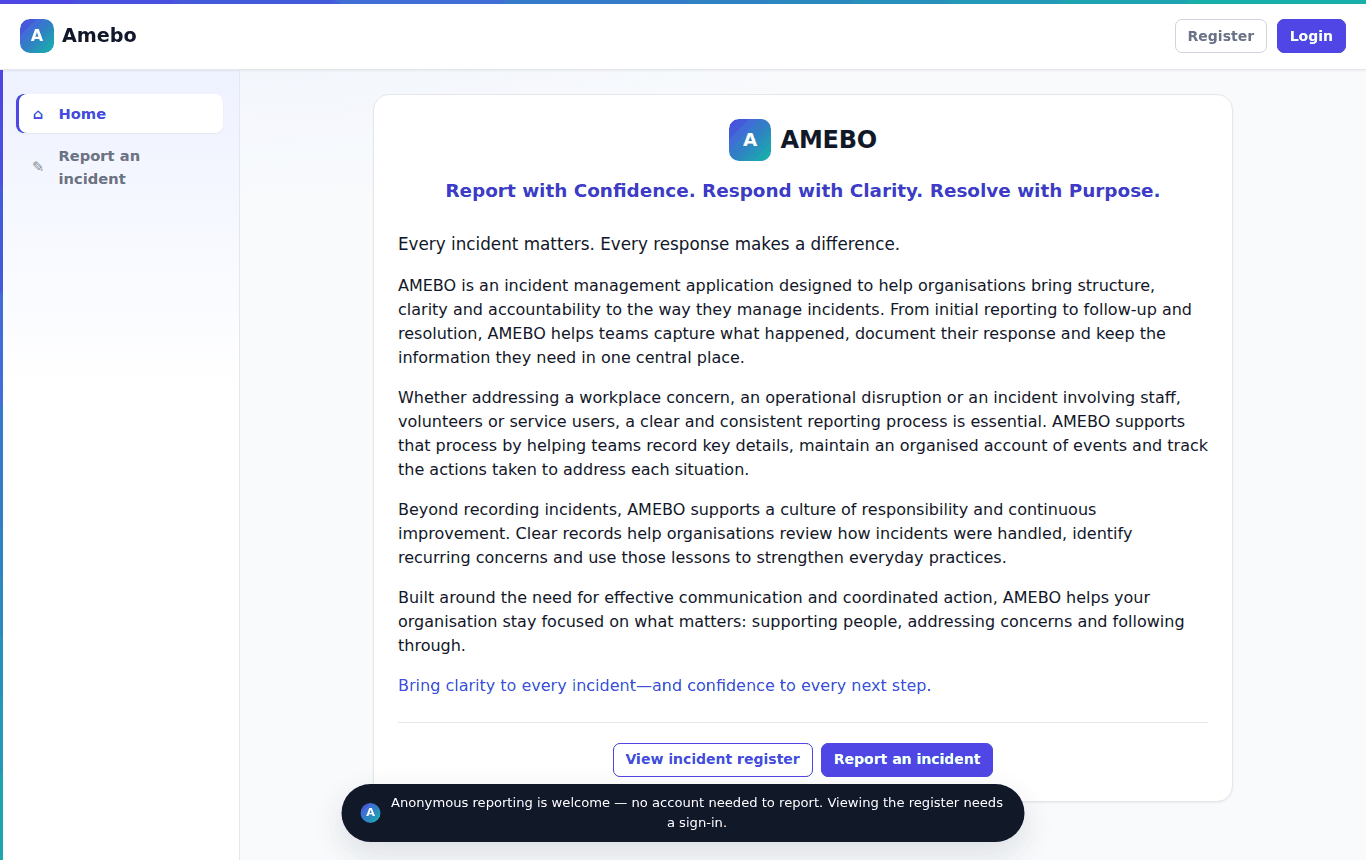
AMEBO is where incidents at our foodbank sites are reported, routed to the right people, investigated and closed. Anyone can report an incident — you do not need an account. Staff with an account follow each case through to closure.
Who does what
| Role | What you can do |
|---|---|
| Anyone (no account) | Report an incident and get a reference number. Leave an email address if you want updates. |
| Reporter (signed in) | Report, save drafts, see your own reports and their progress. |
| Investigator | Investigate the reports assigned to you, record findings and corrective actions, and submit them for review. |
| Case Manager | Handle reports in your categories: assign an investigator, review, refer back or close. Some Case Managers also hold Triage (reports nobody else is set up to receive) or SensitiveCases (safeguarding, data-breach and restricted reports). |
| Action owner | If you are named as the owner of a corrective action, you can read that report (read-only). |
| Admin | Oversee every case, reassign investigators, and manage users, roles, sites, categories and routing. |
Signing in
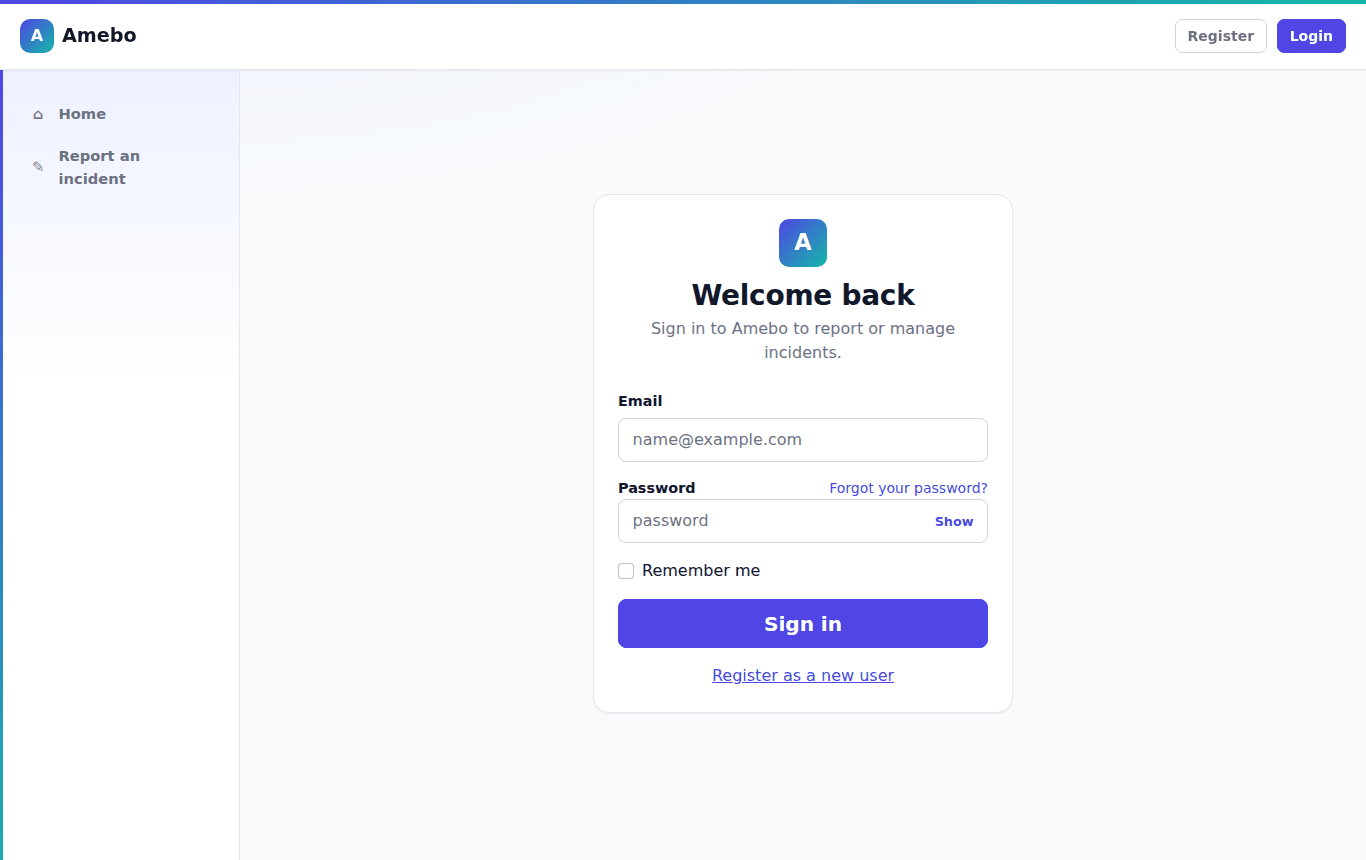
- Select Login at the top right.
- Enter your email address and password, then select Sign in.
- You arrive on My dashboard, which lists the work waiting for you.
Forgotten password
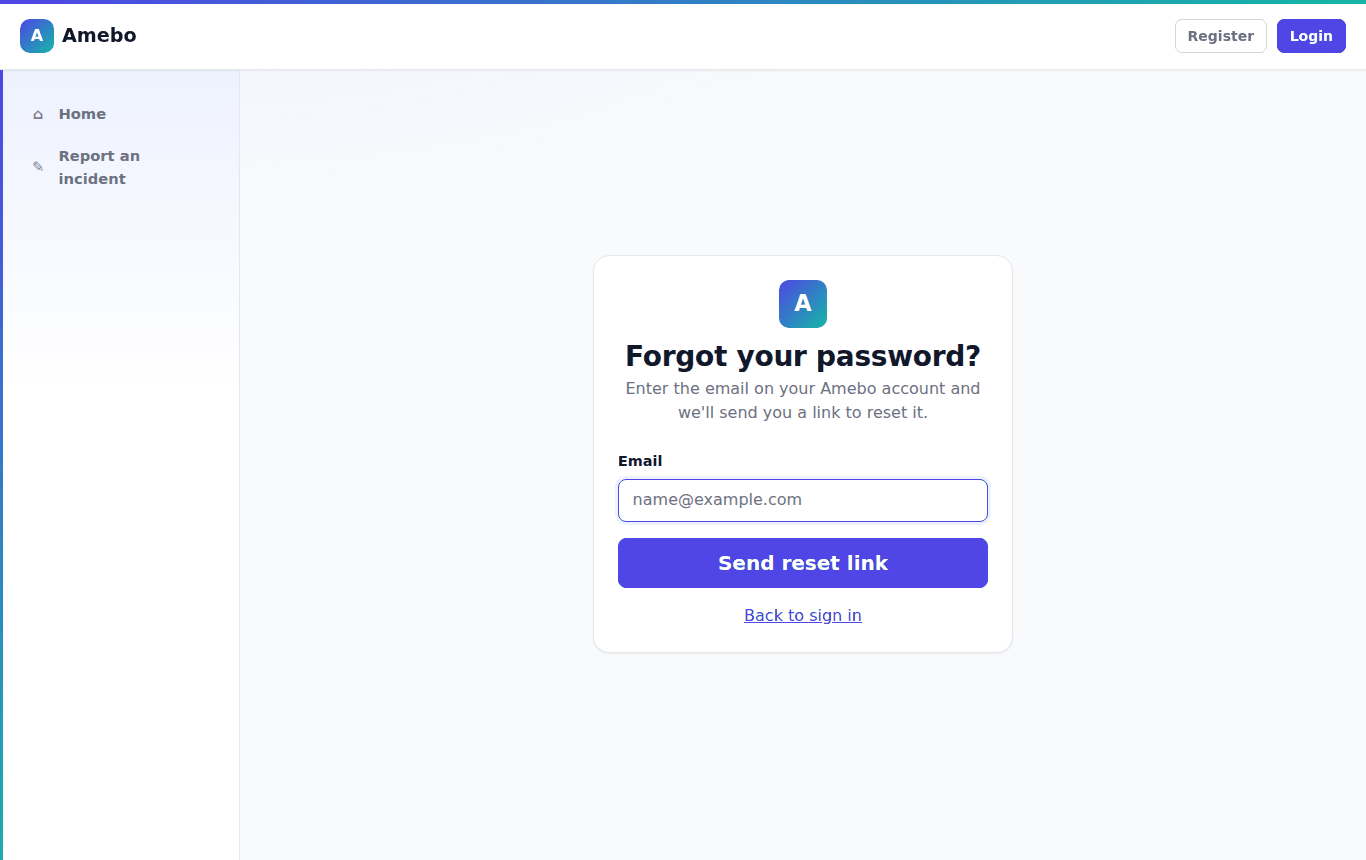
On the sign-in page select Forgot your password?, enter your email address and select Send reset link. Follow the link in the email to choose a new password (at least 10 characters, including an upper-case letter and a number).
Finding your way around
- Report an incident — the report form (everyone).
- My dashboard — your work list and summaries (signed in).
- Incident register — searchable lists of the reports you may see (signed in).
- Insight → Overview — charts (Case Managers and Admins).
- Admin — users, sites, categories and routing (Admins).
- Help — this manual.
On a phone or small screen, open the menu with the button at the top left.
Chapter 2
Reporting an incident
Step-by-step guide to the report form, with or without an account.
The report form has up to ten short sections and a final review page. Only the sections that apply to your incident are shown. Everything is checked again before it is saved, so nothing you type is lost if something needs correcting.
1. Start the report
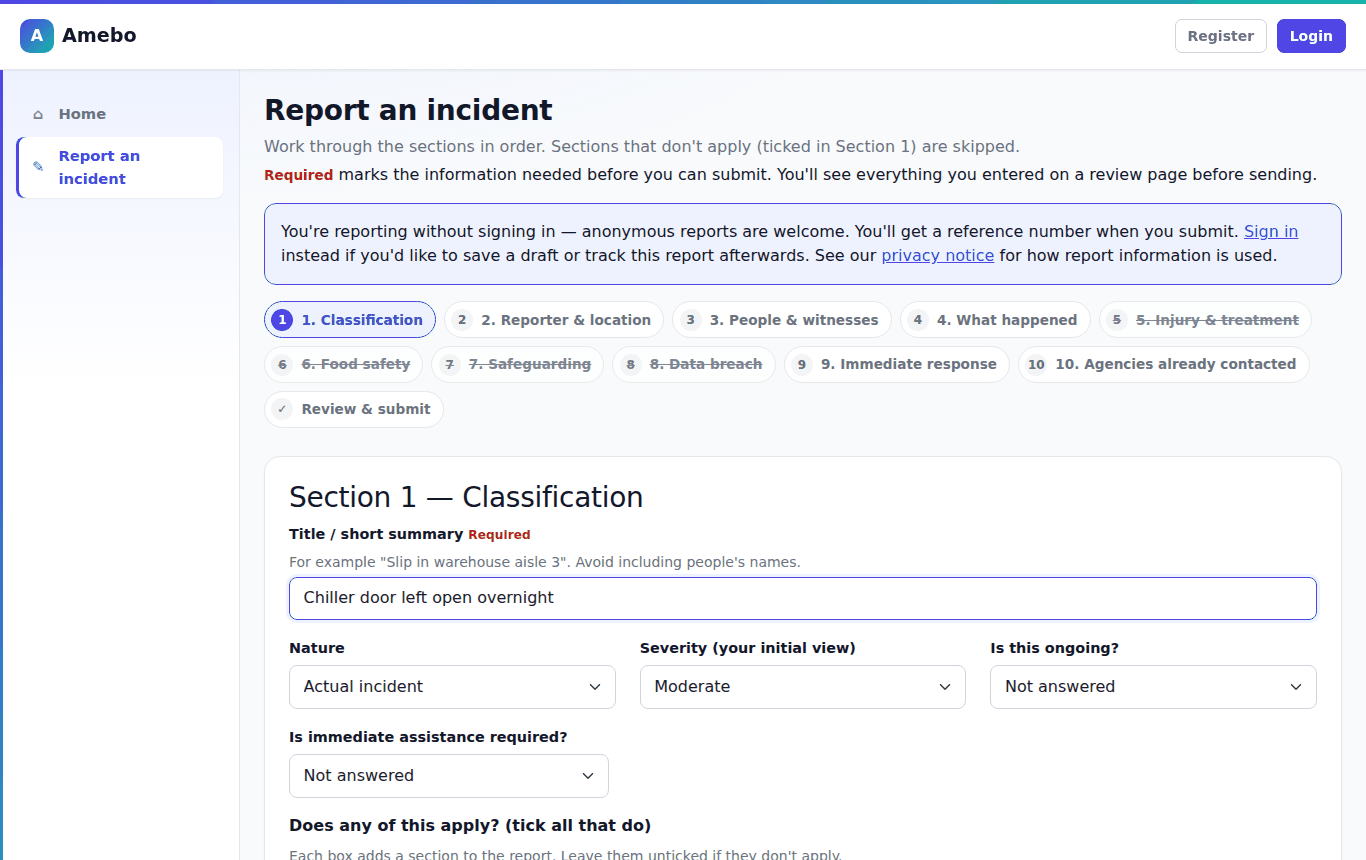
Select Report an incident in the menu. The row of numbered steps at the top shows where you are; you can move between sections with Next → and ← Back, or by selecting a step.
2. Section 1 — Classification
- Title / short summary (required) — for example "Slip in warehouse aisle 3". Please do not put people's names in the title: titles appear in email notifications.
- Nature, Severity (your initial view), and whether it is ongoing or needs immediate assistance.
- Does any of this apply? — tick injury, food safety, safeguarding or personal data. Each tick adds the matching section (5–8) to the form.
Choosing categories
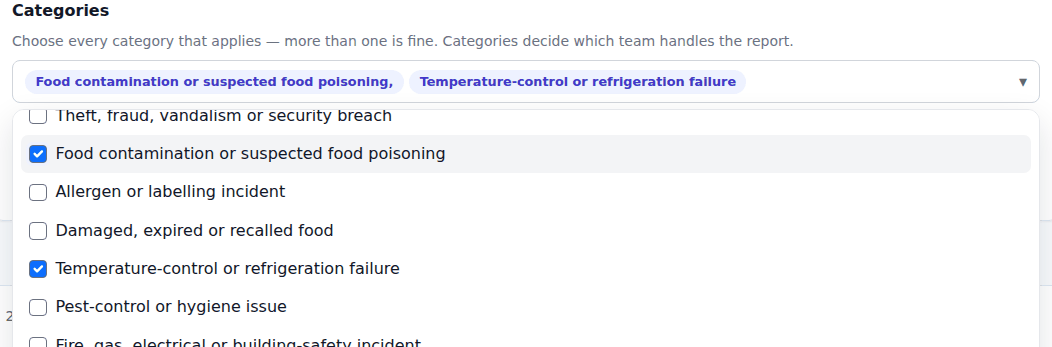
Open the Categories list and tick every category that applies — more than one is fine. You can type to filter the list. Chosen categories appear as chips; select a chip's × to remove it. Categories decide which team handles the report, so choose carefully.
If something is missing
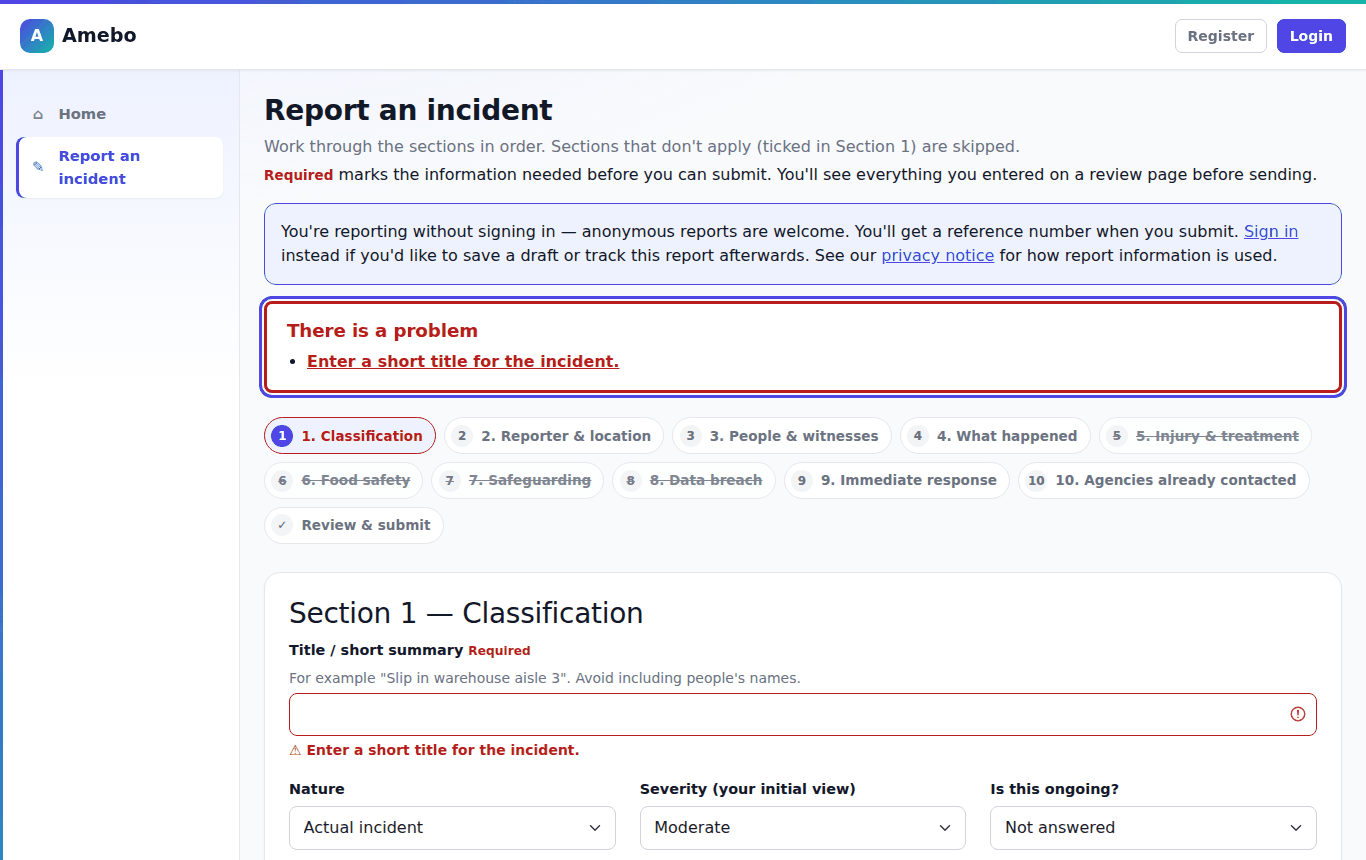
If a required answer is missing or not valid, a red There is a problem box lists each issue. Select an issue to jump to the field.
3. Section 2 — Reporter & location
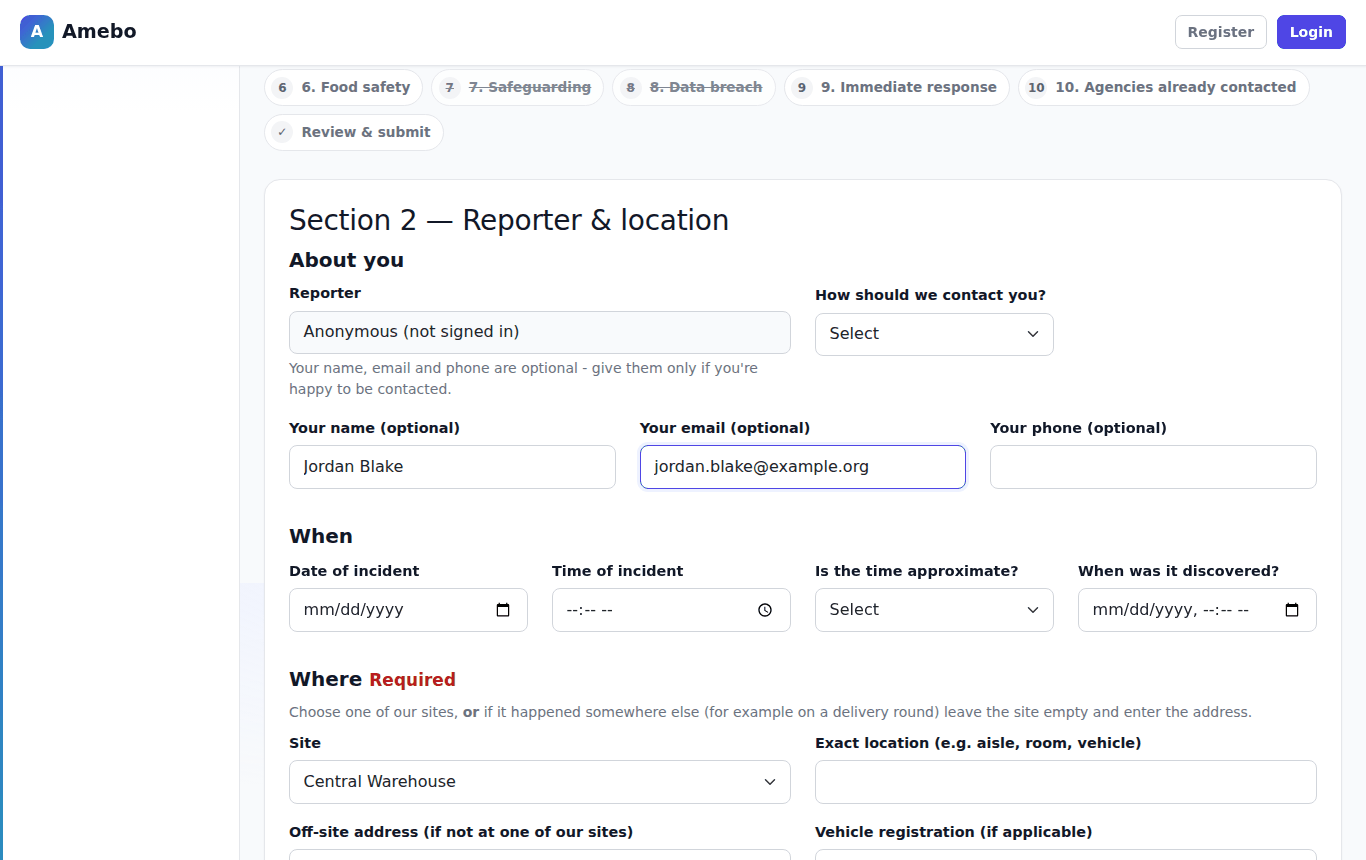
- About you — optional name, email and phone if you are not signed in. Give an email address if you want a receipt and progress updates.
- When — the date and time of the incident (dates cannot be in the future).
- Where (required) — choose one of our sites, or, if it happened elsewhere (for example on a delivery round), leave the site empty and enter the off-site address.
4. Section 3 — People & witnesses
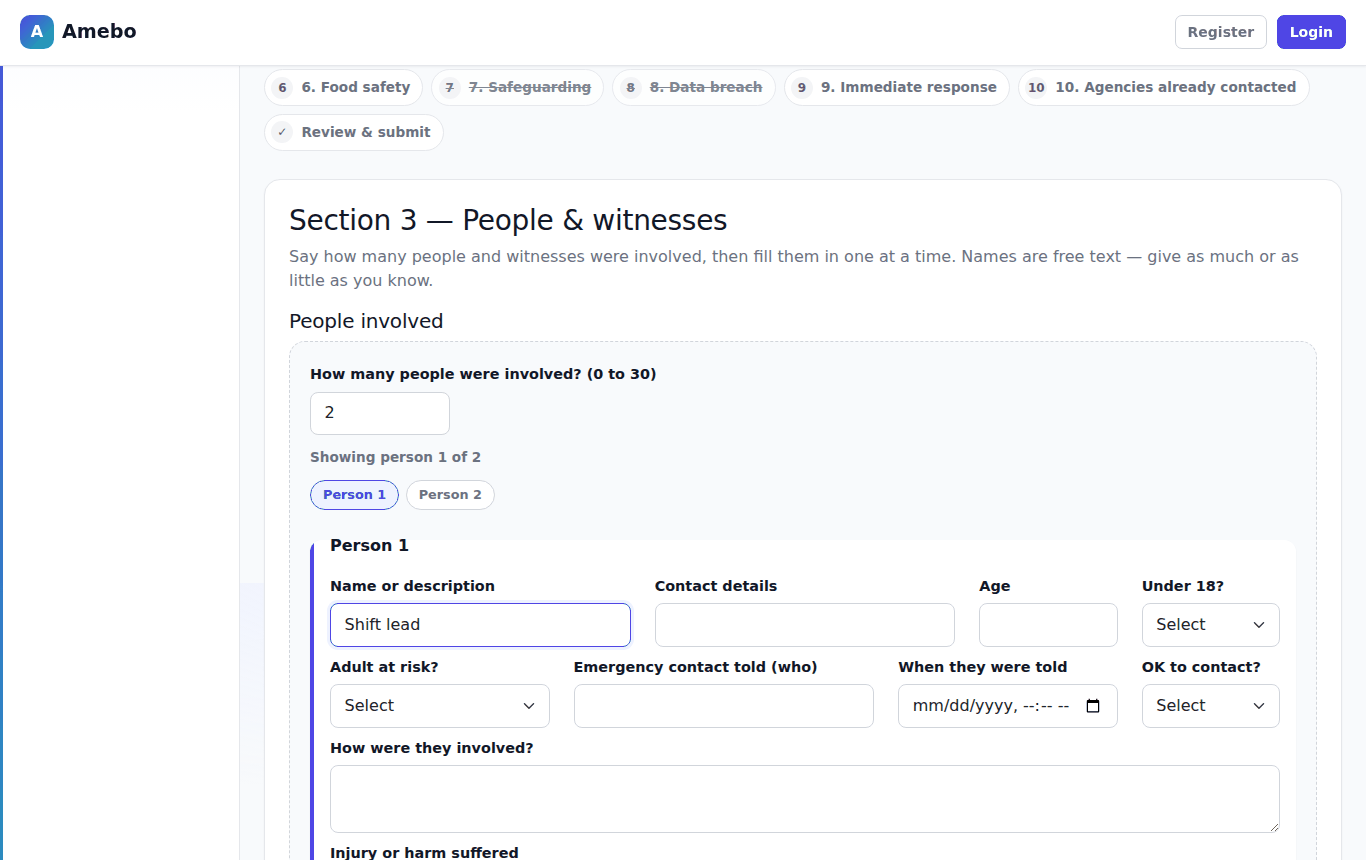
Enter how many people were involved (and how many witnesses). A form appears for each person, one at a time — use the Person 1, Person 2 buttons to move between them. Names are free text; describe people if you do not know their names.
5. Section 4 — What happened
Describe what happened in your own words. You can attach files here: PDF, JPG, PNG, TXT or DOCX, up to 10 MB each.
6. Sections 5–8 (only if ticked in Section 1)
- 5 Injury & treatment — each injury and any first aid given.
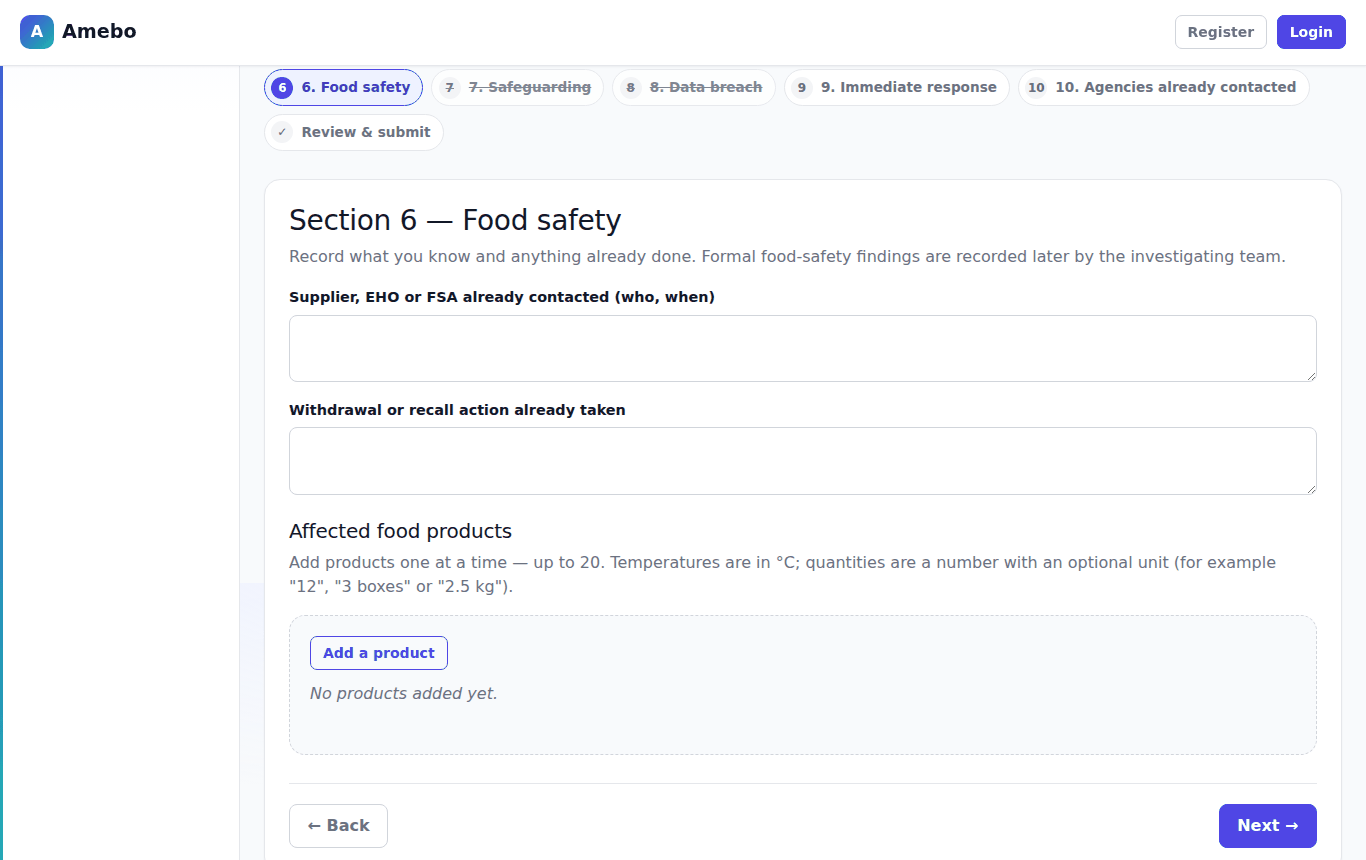
- 6 Food safety — affected products, added one at a time with Add a product. Temperatures are in °C; quantities are a number with an optional unit, for example "12", "3 boxes" or "2.5 kg".
- 7 Safeguarding and 8 Data breach — what you know and what has already been done. These reports are only seen by staff authorised for sensitive cases.
7. Sections 9–10 — Immediate response and agencies
Summarise what was done straight away (required), list any actions taken, and any organisations already contacted (for example the police or the environmental health officer).
8. Review & submit
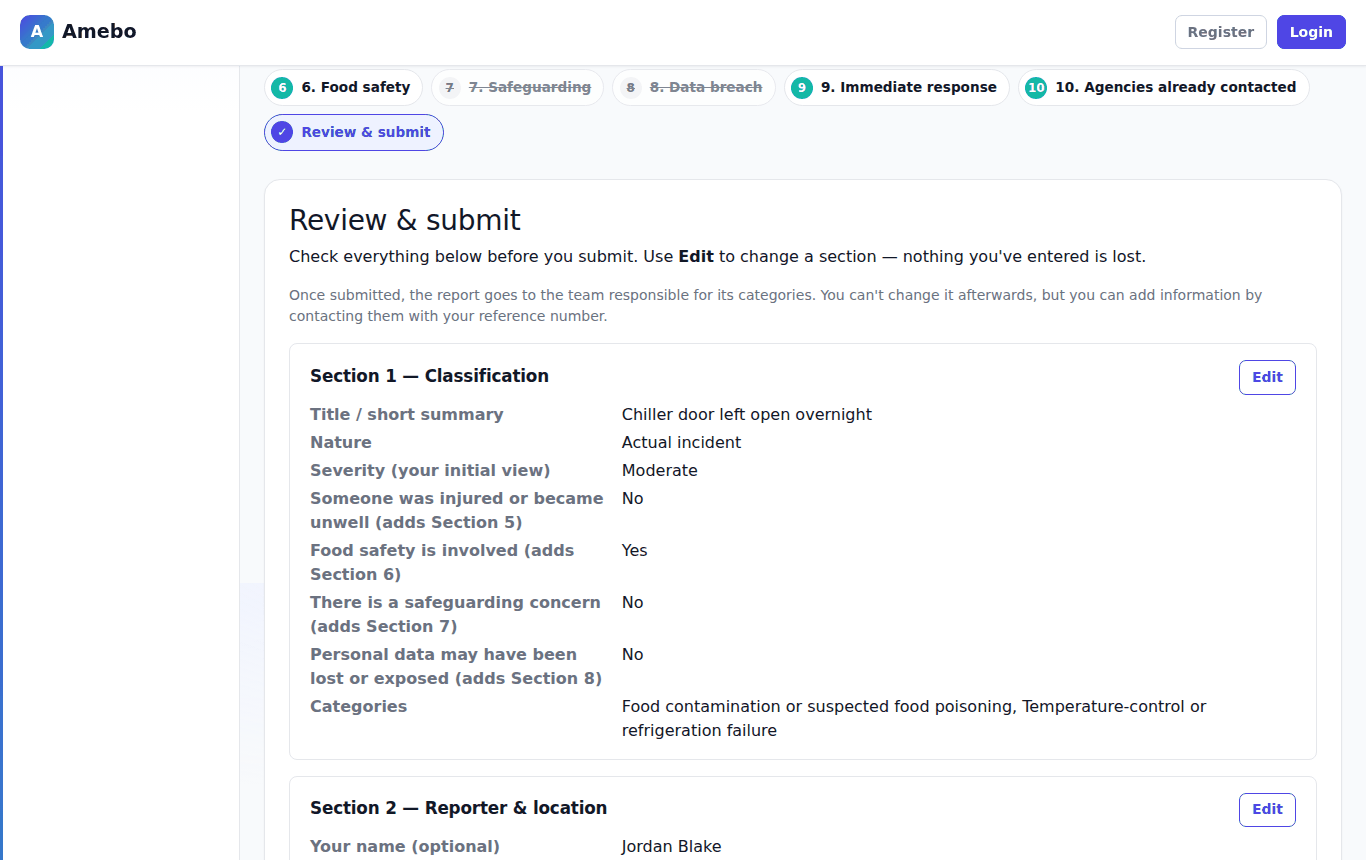
The last page shows everything you entered, section by section. Select Edit next to any section to change it — nothing you have entered is lost. When you are happy, tick the declaration that the information is accurate and select Submit report.
9. Confirmation
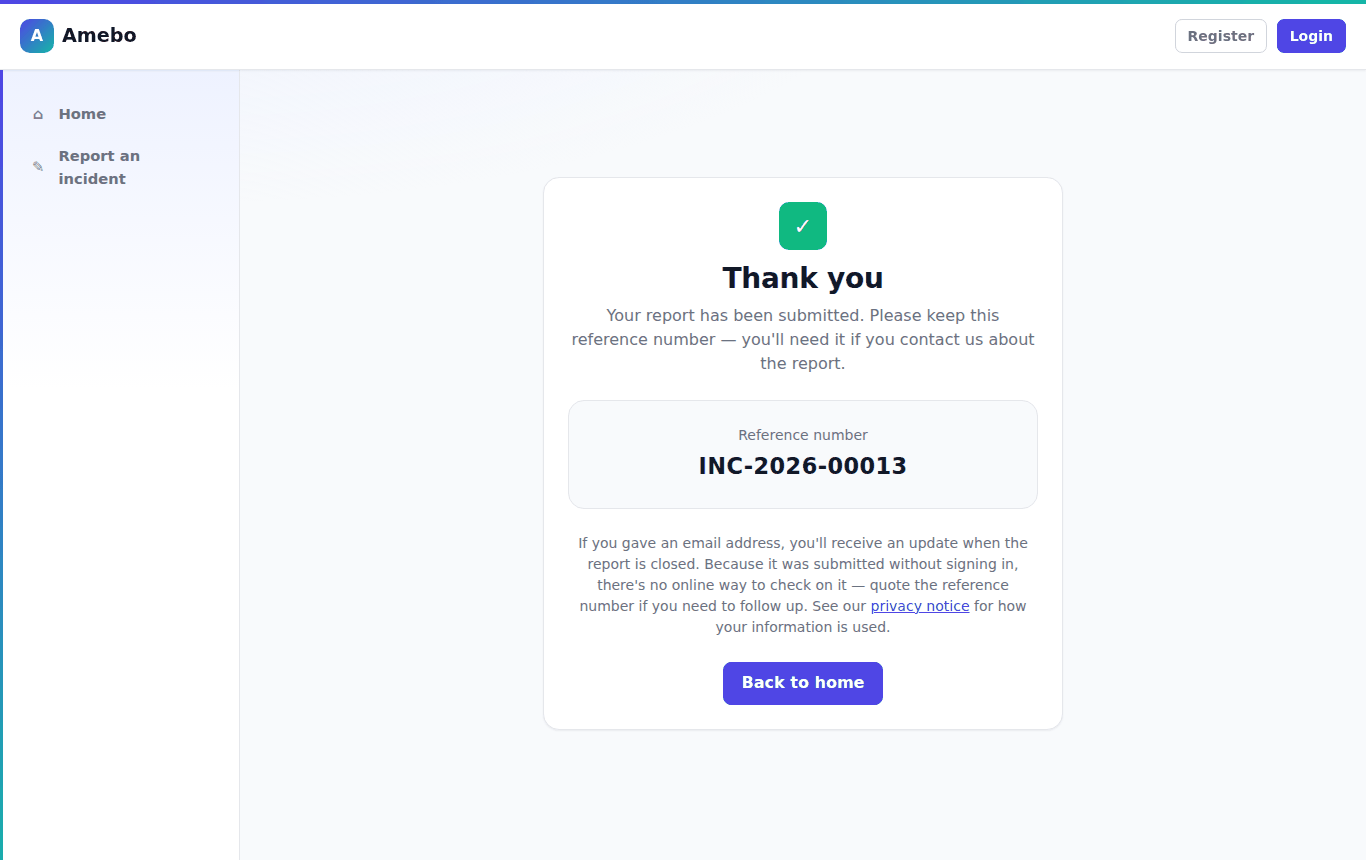
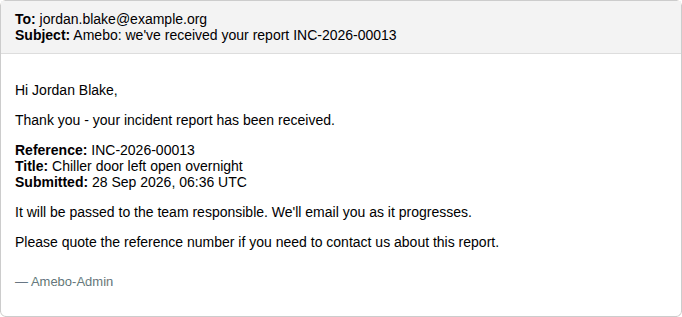
You will see your reference number (for example INC-2026-00013). Keep it — quote it if you contact us about the report. If you gave an email address you will also receive a receipt.
Chapter 3
Email notifications
Which emails AMEBO sends, to whom, and what they contain.
AMEBO sends emails at each stage of a case. Emails never include investigation notes, internal comments or referral reasons.
| When | Who is emailed | What it says |
|---|---|---|
| A report is submitted | The reporter (if an email address is known) | A receipt with the reference number. Signed-in reporters also get a link. |
| A report is submitted | Admins | A new-incident alert. The title is left out for sensitive reports. |
| An investigator is assigned | The investigator; the reporter | Investigator: the assignment. Reporter: "is being investigated". |
| An Admin reassigns the investigator | The new investigator | The assignment. The reporter is not emailed. |
| Submitted for review | The Case Manager; the reporter | Case Manager: ready for review. Reporter: "is being reviewed". |
| Referred back | The investigator; the reporter | Investigator: further investigation needed. Reporter: "needs further investigation". |
| Closed | The reporter | "has been closed", with the outcome. |
Chapter 4
Privacy, security and FAQ
How your information is protected, and answers to common questions.
How your information is protected
- Reports are only visible to the people handling them. Safeguarding, data-breach and restricted reports are limited to staff authorised for sensitive cases.
- If you report anonymously, staff names are never shown to you, and you are not asked to sign in.
- Reporters see their own account and the progress of their report, not internal investigation notes.
- Changes to status, routing and roles are recorded with who made them and when.
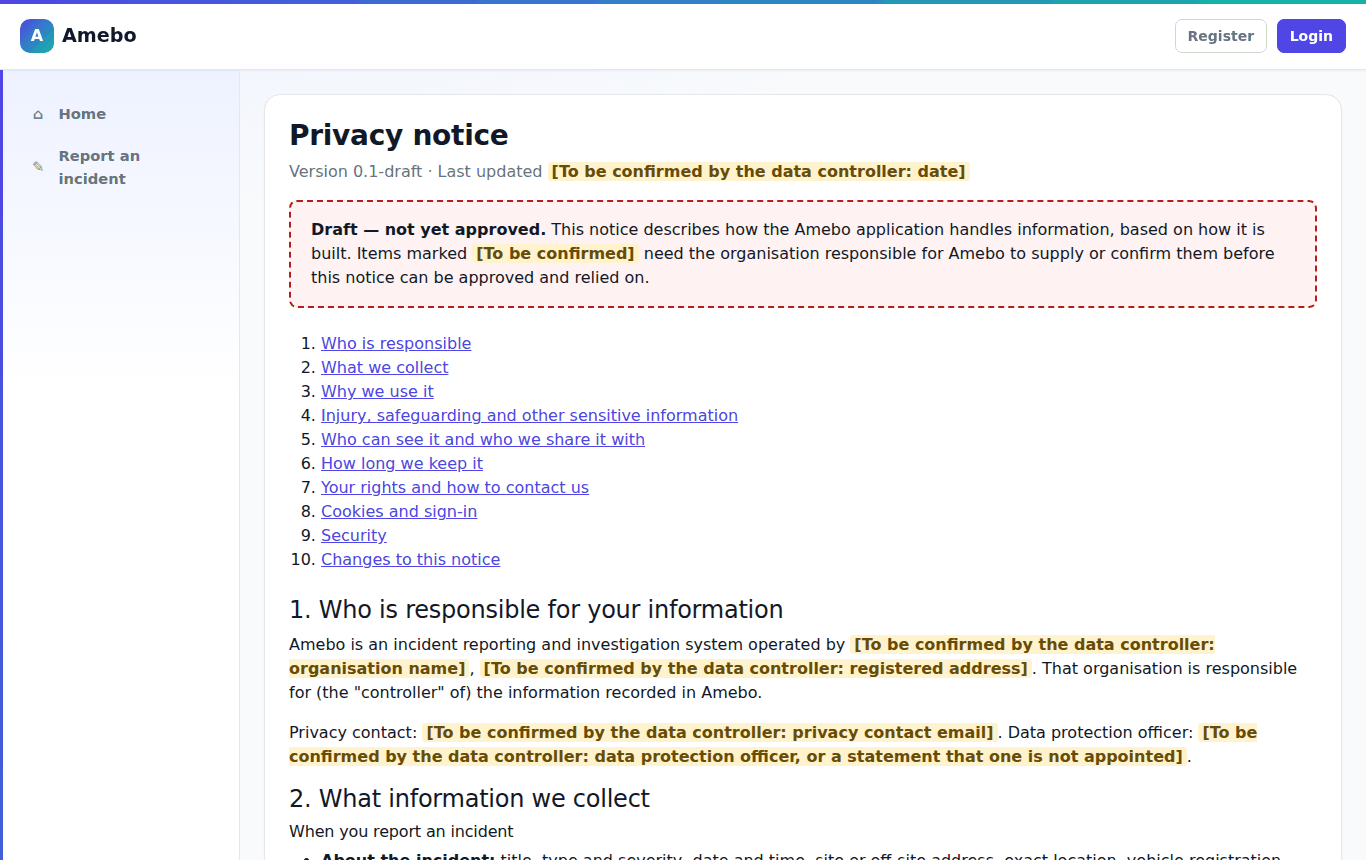
The privacy notice explains who is responsible for your information and how long it is kept.
Frequently asked questions
- I opened a link and AMEBO says "not found".
- Either the report does not exist or you are not allowed to see it — AMEBO does not say which. If you think you should have access, ask your Case Manager or an Admin.
- Can I change a report after submitting it?
- No. Contact the team handling it, quoting the reference number, and they can add the information to the case.
- I lost my reference number.
- If you gave an email address it is in your receipt. Signed-in reporters can find it under Incident register → My reports.
- The form will not let me move on.
- Read the red "There is a problem" box at the top of the section — it lists each issue and links to the field.
- There is a limit on how many people / products / actions I can add.
- The limit is shown next to each list. If you need more, summarise the rest in the free-text description.
- My file will not upload.
- Only PDF, JPG, PNG, TXT and DOCX files up to 10 MB each are accepted.
- I can't sign in.
- Wait 15 minutes if you entered a wrong password 5 times, or use Forgot your password. If your account was deactivated, contact an Admin.