User manual
Getting started
What AMEBO is, who uses it, signing in and finding your way around.
What AMEBO is for
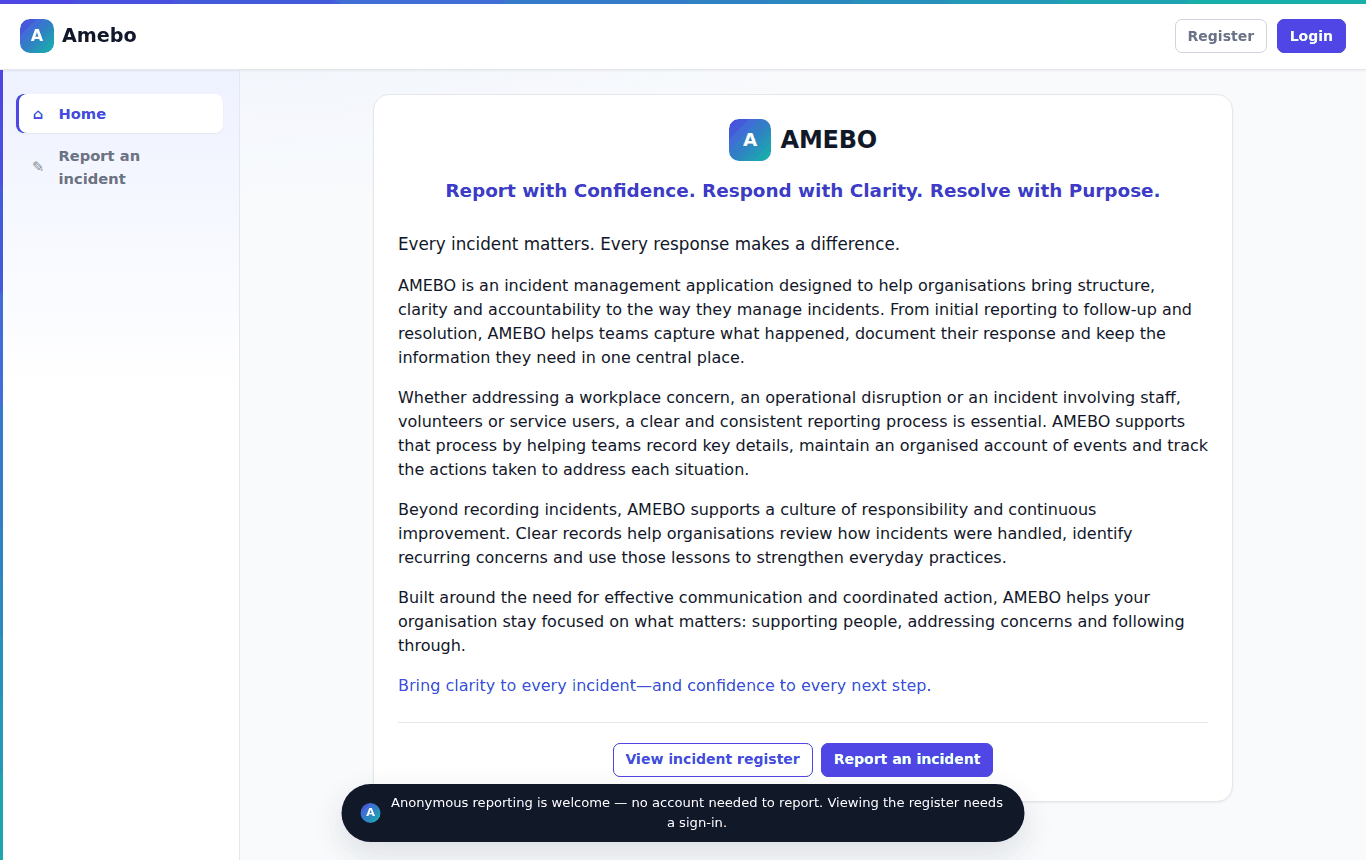
AMEBO is where incidents at our foodbank sites are reported, routed to the right people, investigated and closed. Anyone can report an incident — you do not need an account. Staff with an account follow each case through to closure.
Who does what
| Role | What you can do |
|---|---|
| Anyone (no account) | Report an incident and get a reference number. Leave an email address if you want updates. |
| Reporter (signed in) | Report, save drafts, see your own reports and their progress. |
| Investigator | Investigate the reports assigned to you, record findings and corrective actions, and submit them for review. |
| Case Manager | Handle reports in your categories: assign an investigator, review, refer back or close. Some Case Managers also hold Triage (reports nobody else is set up to receive) or SensitiveCases (safeguarding, data-breach and restricted reports). |
| Action owner | If you are named as the owner of a corrective action, you can read that report (read-only). |
| Admin | Oversee every case, reassign investigators, and manage users, roles, sites, categories and routing. |
Signing in
- Select Login at the top right.
- Enter your email address and password, then select Sign in.
- You arrive on My dashboard, which lists the work waiting for you.
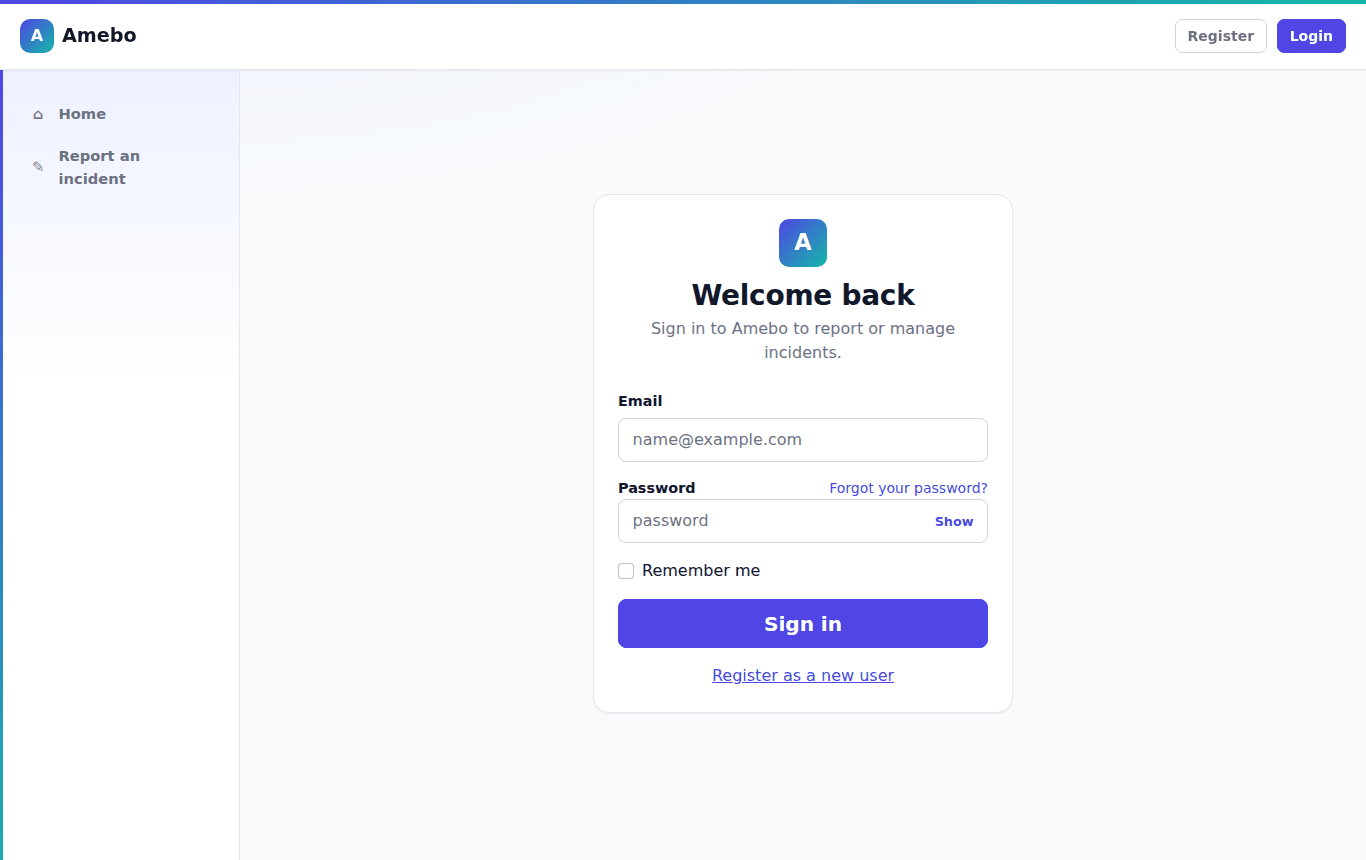
Locked out? After 5 wrong passwords your account is locked for 15 minutes. If your account has been deactivated you cannot sign in — contact an Admin.
Forgotten password
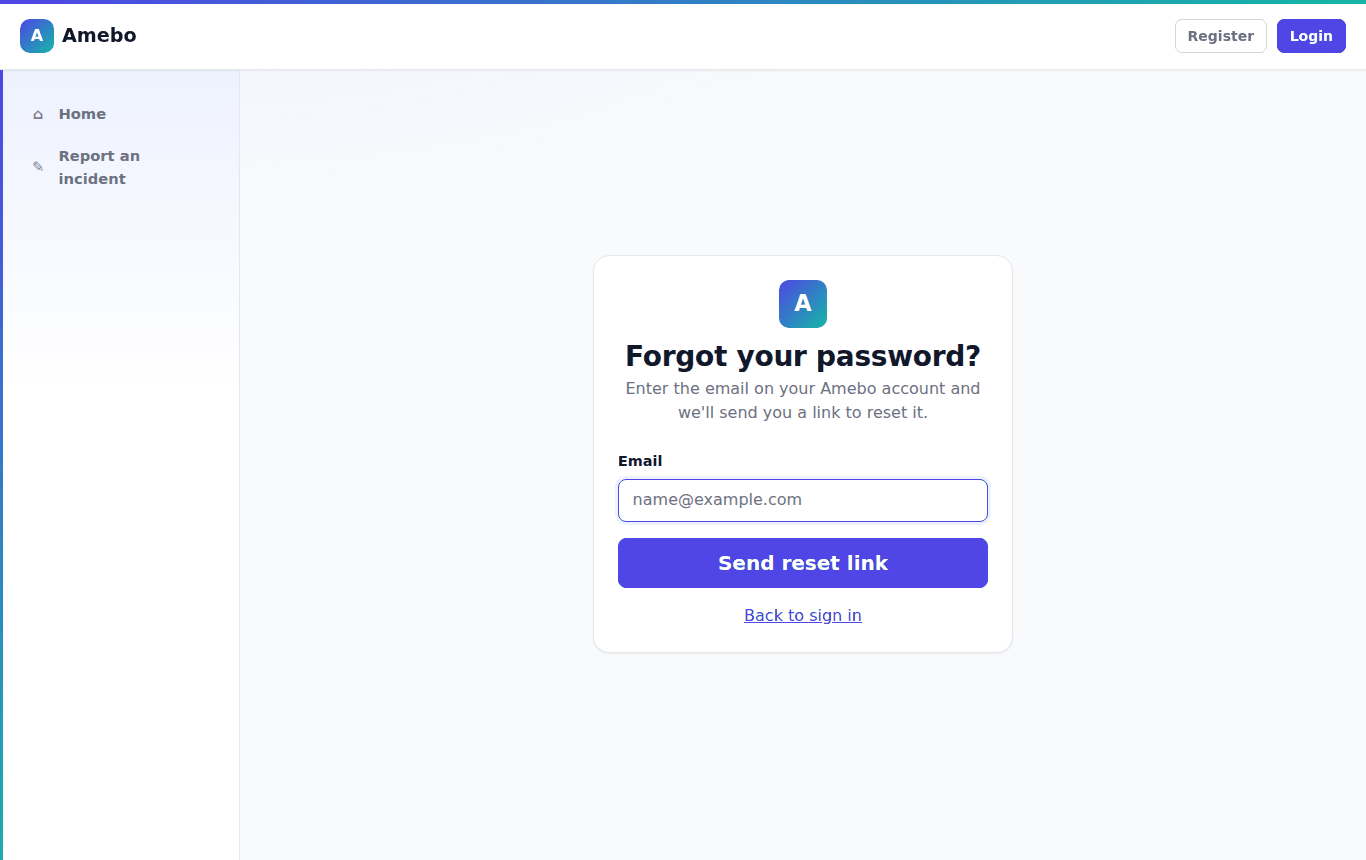
On the sign-in page select Forgot your password?, enter your email address and select Send reset link. Follow the link in the email to choose a new password (at least 10 characters, including an upper-case letter and a number).
Finding your way around
- Report an incident — the report form (everyone).
- My dashboard — your work list and summaries (signed in).
- Incident register — searchable lists of the reports you may see (signed in).
- Insight → Overview — charts (Case Managers and Admins).
- Admin — users, sites, categories and routing (Admins).
- Help — this manual.
On a phone or small screen, open the menu with the button at the top left.